
Quick Answer
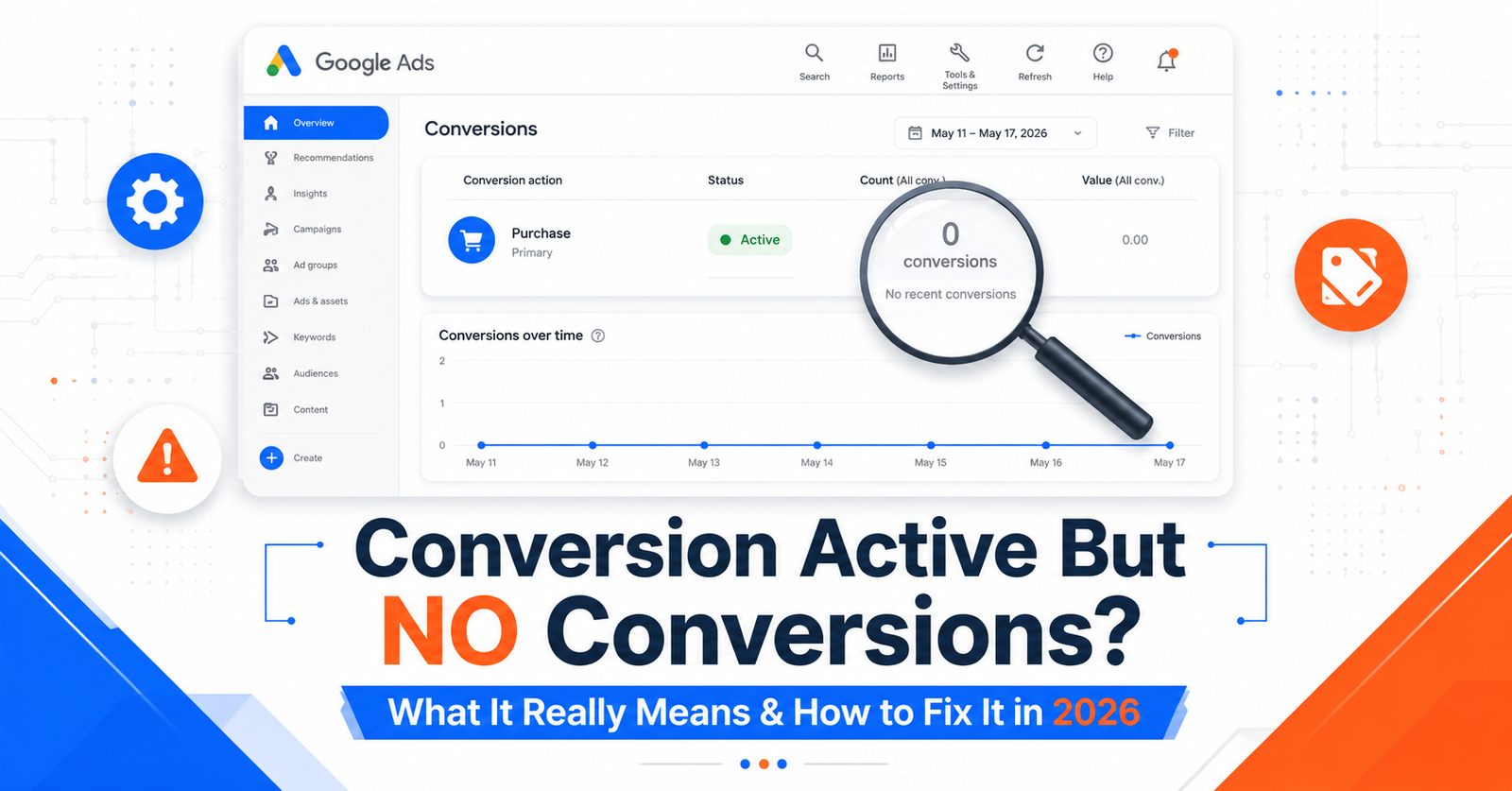
When Google Ads shows your conversion action as Active but No recent conversions, it means Google has confirmed your conversion tag is properly set up and detected, but no qualifying conversions have been recorded from ad traffic in the last 7 days. This is not always a problem with your tracking. The “No recent conversions” status is highlighted in gray, indicating that there have been no recorded conversions in the last 7 days. It can mean no one converted, the wrong action is being checked, the tag is firing on the wrong page, attribution is delayed, or users are clicking ads but not completing the action. Below is exactly how to diagnose and fix it.
What Does Active But No Recent Conversions Mean in Google Ads?
In Google Ads, every conversion action has a status that tells you how it is performing.
An “Active” conversion action overview status is highlighted in green and indicates that everything is working as intended. But when paired with “No recent conversions,” Google is telling you two things at the same time:
- Active. Google can see your conversion tag, and it appears properly installed.
- No recent conversions. Google has not recorded any qualifying conversions from ad clicks in the last 7 days.
This is different from “Inactive.” With Inactive, something is technically broken. With “Active but no recent conversions,” the setup looks correct on Google’s end, but conversions are not flowing through.
The key term here is ad click-based conversion tracking. Google only counts a conversion when:
- A user clicks one of your ads.
- That click is tracked with a valid GCLID (Google Click Identifier)
- The user completes the configured conversion action within the attribution window.
If any link in that chain breaks, you see “No recent conversions” even when the tag itself is healthy.
Does Active Mean Conversion Tracking Is Working?
Short answer: Not always.
Active status is a positive signal. It means Google has detected the tag firing somewhere on your website at some point. But active does not guarantee that:
- Every conversion is being recorded.
- The tag is firing on the correct page or event.
- The conversion is being properly attributed to your ads.
- Users are actually completing the desired action.
A tag can be active but still have setup problems. For example, the tag might be firing on every page load instead of only on the thank you page. Or it might be firing for a button click that does not represent a real lead.
This is why advertisers often see “Active” and assume everything is fine, only to find out weeks later that no real leads were being recorded.
Why Google Ads Shows Active, but No Recent Conversions
Here are the most common real-world reasons.
No One Has Converted Recently
Sometimes the simplest explanation is the right one. If your campaign has been running for a week with minimal traffic, or your offer is not attractive enough, no one is converting. The tag is fine. The problem is the campaign performance, not the tracking.
Check your impressions, clicks, and CTR first. If you are getting clicks but zero conversions, the issue may be on the landing page side rather than the tracking side.
The Conversion Tag Is Installed But Not Firing on the Right Action
This is one of the most common causes behind the status. The tag is on the website, but it is firing on the wrong page or wrong event.
A typical example: the conversion tag is installed on the contact form page instead of the thank you page. So every visitor who lands on the form triggers a “conversion,” even if they never submit it. Or worse, the tag never fires at all because the form does not redirect to a thank you page.
The Conversion Is Being Tested Without Clicking an Ad
This catches a lot of marketers off guard. If you test by typing your website URL directly and submitting the form, Google Ads will not record a conversion. There is no GCLID attached to your visit.
Real conversions only get counted when the user came from a Google Ad click. Direct visits, organic visits, and social visits do not count toward Google Ads conversion data.
The Wrong Conversion Action Is Being Checked
If your account has multiple conversion actions, you may be looking at the wrong one. For example, you might have a “Lead Form” conversion and a “Phone Call” conversion. If you check the Lead Form action and it shows no recent conversions, but all your leads are coming from calls, the data is technically correct. You are just looking at the wrong place.
The Thank You Page or Form Trigger Is Not Set Correctly
If your conversion is set to fire on a thank-you page, the URL must match exactly what is loaded after submission. A common issue is when the form redirects to example.com/thank-you/ but the conversion trigger is set to fire on example.com/thanks/. The page exists. The form submits. But the trigger never fires because the URL does not match.
GA4 or Google Tag Manager Is Not Sending the Event Properly
If you are using GA4 events imported into Google Ads as conversions, any disruption in GA4 affects Google Ads.
Check enhanced conversion match rates. A drop in match rate means fewer conversions are being properly attributed, which can look like a volume decline. Check Consent Mode. If consent signals changed or your CMP updated its configuration, the proportion of modeled versus observed conversions may have shifted.
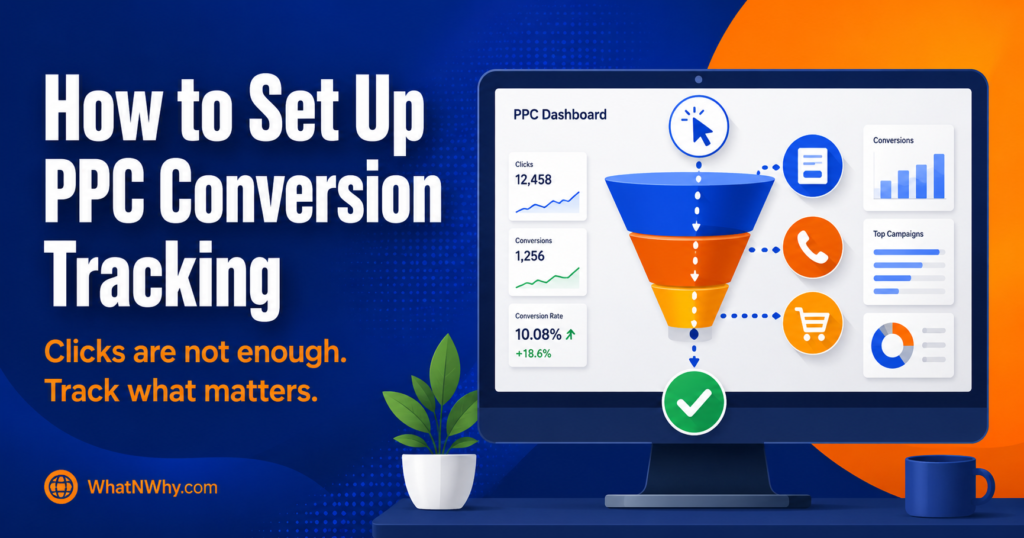
GA4 conversion events take time to sync with Google Ads. After GA4 setup changes, you may see a 24 to 72 hour delay. If the GA4 and Tag Manager side was never set up carefully to begin with, the full conversion tracking setup process is worth working through rather than patching one symptom.
The Conversion Window or Attribution Delay Is Affecting Reporting
Some delay is normal, since Google Ads can take up to three hours to process conversions, but consistent multi-day delays signal a deeper problem.
Conversion windows also matter. If your sales cycle is 45 days but your conversion window is set to 30 days, anyone who converts on day 31+ will not be counted. This is especially common in B2B or high-ticket service businesses.
The Campaign Is Getting Clicks But Not Qualified Visitors
You can have plenty of clicks but no conversions if those clicks are not from qualified prospects. Bad search terms, broad targeting, or wrong location settings can send the wrong people to your site. They click the ad, look around, and leave. No conversion ever happens.
The Landing Page Has Traffic But No Real Leads
If the landing page is slow, confusing, or the offer is unclear, visitors will not convert no matter how good your ad is. The tag is fine. The conversion path is broken at the landing page level.
Consent Mode or Cookie Settings Are Affecting Tracking
Check your consent management platform. If you’re using a cookie banner and users are declining tracking consent, the conversion tag may be blocked from firing for a significant portion of your visitors. Depending on your audience, that alone can drop conversion volume below the threshold that keeps the status active.
This is becoming a bigger issue in 2026, especially for UK and EU advertisers with strict GDPR consent rules. The same signal loss affects every platform. On Meta, the Conversions API exists specifically to recover what the browser Pixel misses, and a server side setup is now standard practice there too.
How to Check If Google Ads Conversion Tracking Is Actually Working
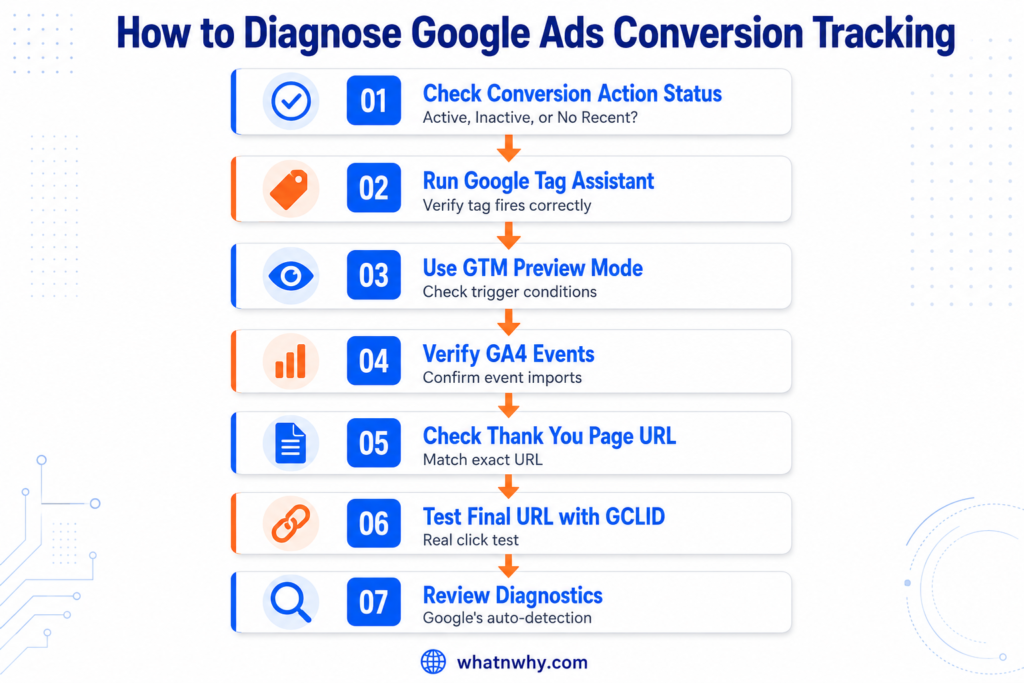
Here is the practical, step-by-step diagnostic process.
Step 1: Check Conversion Action Status in Google Ads
Go to Google Ads → Goals → Conversions → Summary.
Look at the Status column for each conversion action. You will see one of three indicators: “Recording conversions” means it’s working normally, “No recent conversions” suggests it’s set up but not firing, and “Inactive” means it’s not currently tracking.
Click into the specific conversion action and check:
- Last conversion recorded date
- Conversion category (Lead, Purchase, Sign-up, etc.)
- Counting setting (One vs Every)
- Attribution model
- Conversion window
Step 2: Use Google Tag Assistant
Install the Google Tag Assistant Chrome extension. Visit your landing page and trigger the conversion action manually (submit the form, click the button, etc.).
Tag Assistant will show you:
- Whether the tag fired
- Whether the conversion ID and label match what is in Google Ads
- Whether the GCLID is being picked up correctly
Step 3: Use Google Tag Manager Preview Mode
If you are using GTM, enter Preview mode. Visit your landing page through an actual ad click (or simulate by appending a test GCLID).
In Preview mode, you will see exactly which tags fired, which triggers activated, and any errors. This is the fastest way to spot a misconfigured trigger.
Step 4: Check GA4 Events
If you import conversions from GA4, open GA4 and check:
- Admin → Events
- Make sure your event is marked as a key event.
- Realtime → check if events are firing live.
Step 5: Verify the Thank You Page URL
Test the form. Submit it normally. Watch the URL after submission. The URL must match exactly what your conversion trigger expects, including trailing slashes, query parameters, and capitalisation.
Step 6: Check the Final URL From the Ad
In your campaign settings, verify the Final URL. Click your live ad in incognito mode. Make sure it lands on the correct page with a working GCLID in the URL (e.g., ?gclid=…).
Step 7: Check Conversion Diagnostics
Inside the conversion action, Google now provides a Diagnostics section that flags common issues automatically. This is updated for 2026 and catches most setup problems.
How to Test a Google Ads Conversion Correctly
This is where most marketers get it wrong.
Wrong way: Open your website directly, fill out the form, and check Google Ads for the conversion. This will not work. There is no GCLID. Google has no way to know this came from an ad.
Correct way:
- Click your own live ad in incognito mode (do not use the “Preview” function, actually click the live ad once).
- Note that the URL now contains ?gclid=…
- Complete the conversion action (submit the form, etc.).
- Wait 3 to 6 hours.
- Check Google Ads for the conversion.
Better way: Use Google Tag Assistant or GTM Preview mode with debug links. These tools simulate conversions without burning real ad spend.
Most reliable way: Use Google’s official testing URL with a debug GCLID. Google Ads Help has a guide on this exact process.
Common Mistake: Thinking Active Means Leads Must Be Coming In
This is one of the most expensive misunderstandings in PPC.
Imagine a service business running Google Ads. The marketer logs in, sees “Active” with a green checkmark, and assumes conversion tracking is working perfectly. After three weeks, the client says they have not received a single lead. The marketer blames the campaign, the keywords, or the audience.
But when they finally dig into the setup, they find the truth: the conversion tag was firing on every page load, not on form submission. So Google Ads was recording “conversions” every time someone landed on the contact page, even if they bounced immediately. The active status was technically true. The data was complete nonsense.
Active means Google can see the tag. It does not mean the tag is firing on the right action.
Google Ads Clicks But No Conversions: What to Check Next
If your tracking is genuinely working but conversions are still not happening, the problem is in the funnel itself.
The gap between clicks and conversions typically stems from six core issues: broken conversion tracking, poor landing page experience, misaligned audience targeting, weak ad copy, technical site problems, or unrealistic conversion goals.
That last one is worth taking seriously. Typical PPC costs and what they buy gives ranges you can measure your own expectations against, because a goal that no budget in your industry could hit is not a tracking problem.
Here is the practical checklist:
- Search terms quality. Check the actual search queries triggering your ads. Are they relevant or junk?
- Keyword intent. Are your keywords commercial intent or just informational?
- Location targeting. Are you accidentally targeting locations outside your service area?
- Ad copy mismatch. Does your ad promise something the landing page does not deliver?
- Landing page speed.
Slow mobile pages lose a significant share of visitors before the page finishes loading. - Lead form friction. Too many fields, confusing layout, broken submit button.
- Mobile experience. Test the entire flow on mobile, not just desktop.
- Offer clarity. Is it immediately clear what the visitor gets?
- Call to action. Is the CTA visible above the fold and clear?
- Budget and bid strategy. Smart Bidding without enough conversion data will underperform, and knowing when to automate your bidding and when to wait is worth settling before you blame the strategy itself.
How to Fix Active But No Recent Conversions
Now the practical fixes.
Confirm the Correct Conversion Action
Open Google Ads → Goals → Conversions. Identify which conversion action you care about most. If you have multiple actions, make sure you are checking the right one. Set the most important one as “Primary.” Once that action is recording properly, work out your cost per lead from real spend and real conversions. That number is what the entire setup exists to produce.
Test the Tag With Google Tag Assistant
Install Tag Assistant. Visit your landing page. Trigger the conversion. Confirm the tag fires, the conversion ID matches, and the conversion label matches.
Check GTM Triggers and Conditions
If you use GTM, open Preview mode and walk through the entire conversion flow. Watch which triggers fire on which events. Fix any that fire too early, too late, or on the wrong page.
Verify the Thank You Page or Form Event
The thank you page URL in your trigger must exactly match what loads after form submission. Check for:
- Trailing slashes
- Query parameters
- Capitalisation
- HTTPS vs HTTP
Check GA4 Event Import Settings
If conversions are imported from GA4:
- Open GA4 → Admin → Events.
- Confirm the event is marked as a key event.
- Open Google Ads → Goals → Conversions → New conversion action → Import.
- Re-link if necessary.
Review Conversion Attribution and Reporting Delay
The attribution model directly impacts your reported conversion numbers. If you recently changed models, that might explain sudden discrepancies. Data-driven attribution typically shows more conversions distributed across more campaigns than last-click attribution.
Wait at least 24 to 72 hours after any setup change before assuming something is broken.
Improve Landing Page Conversion Rate
If tracking is fine but conversions are low:
- Speed up the page (under 2.5 seconds LCP).
- Simplify the form (3 to 5 fields max).
- Add trust signals (testimonials, security badges).
- Make the CTA bigger and clearer.
- Test mobile performance specifically.
Check Search Terms and Audience Quality
Open Insights → Search Terms in Google Ads. Look at the actual queries. Add irrelevant terms as negative keywords. Refine your match types if too many junk queries are triggering ads.
Do a Real Click to Conversion Test
Run a real end-to-end test:
- Click your live ad
- Confirm GCLID is in the URL
- Complete the conversion
- Wait 3 to 6 hours
- Check if it shows up in Google Ads.
If it does, your tracking is working, and the issue is volume. If it does not, there is still a setup problem to fix. In that case, check whether the budget is buying enough clicks to expect a conversion at all, since working the numbers back from your CPC and conversion rate often shows the sample is simply too small yet.
How This Usually Plays Out
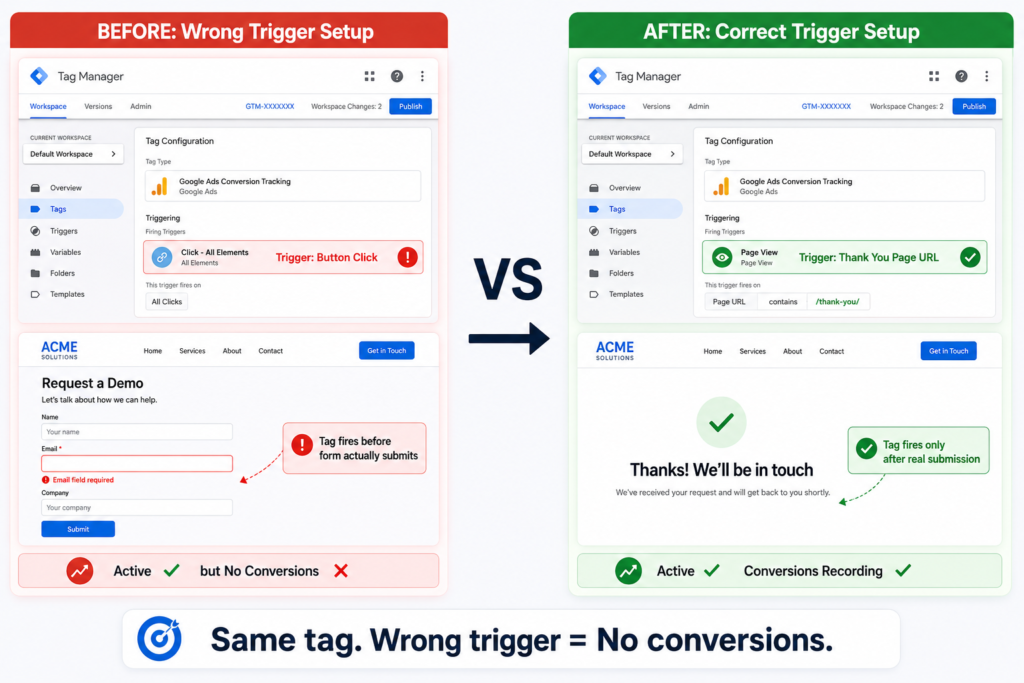
A service business is running Google Ads to a landing page for free consultations. The campaign has been live for two weeks. Google Ads shows the conversion action as Active. But no leads have come in.
The marketer investigates step by step:
Step 1: Checks Tag Assistant. The conversion tag is firing.
Step 2: Submits the form as a test (without clicking an ad) and gets the thank you message.
Step 3: Opens GTM Preview mode and watches the conversion fire, and sees that the trigger is set to fire on a button click, not on the thank you page load.
The problem: The conversion trigger was attached to the “Submit” button click. But the form has client-side validation. If the user submits with an invalid field, the button still fires the trigger, but the form does not actually submit. So Google was technically detecting “conversions” earlier (during setup testing), but real users were getting validation errors, never actually submitting, and never reaching the thank-you page.
The fix: Change the conversion trigger to fire on the thank you page URL (/thank-you/) instead of the button click. Once the trigger matches the real action, conversions start recording normally.
The tag was active the whole time. The trigger logic was the problem.
Quick Troubleshooting Checklist
Run through this every time you see “Active but no recent conversions”:
- Check the correct conversion action is selected.
- Confirm the tag fires on the right page or event.
- Test with Google Tag Assistant.
- Test in GTM Preview mode.
- Check GA4 events (if imported).
- Verify the final URL and thank you page URL match.
- Check if the conversion is set as Primary or Secondary.
- Check conversion window and attribution delay settings.
- Check landing page speed and mobile performance.
- Check search terms and keyword intent.
- Verify Consent Mode is not blocking the tag.
- Run a real click-to-conversion test through a live ad.
Frequently Asked Questions
Final Thoughts
“Active but no recent conversions” is one of the most misunderstood statuses in Google Ads.
Active is a positive signal. It tells you Google has detected your conversion tag, and the setup looks correct on a technical level. But it does not guarantee that real conversions are being recorded from real ad clicks.
The right approach is not to assume your tracking is broken or working. It is to test it properly. Run a real end-to-end test. Check Tag Assistant. Verify trigger conditions. Confirm the thank you page URL matches. Review your attribution settings.
In 2026, with privacy changes, consent mode, and increasingly complex tracking setups, conversion tracking is more fragile than ever. The advertisers who get accurate data are the ones who actively verify their setup, not the ones who trust a green checkmark.
If your conversion shows active but no recent conversions, do not panic. Walk through the checklist above. Most issues come down to wrong trigger setup, attribution delay, or simply no qualified ad traffic converting yet.
Resources
Troubleshooting Conversion Tracking Status
Source: Google Ads Help. Google’s official guide to what each conversion status means and how to diagnose it.
Conversion Tracking Setup
Source: Google Tag Manager Help. Official guidance on tags, triggers, and testing in Preview mode.
GA4 to Google Ads Conversion Import
Source: Google Analytics Help. Official steps for linking GA4 with Google Ads and importing events.