
Quick Answer
Why is Google not indexing my page? Usually one of four things. Google cannot access the page, Google has chosen a different URL as the canonical, Google has not discovered the page yet, or Google has looked at the page and decided it is not worth including. Start with URL Inspection in Google Search Console. The status it reports tells you which of those four you are dealing with.
Is being crawled the same as being indexed? No. Google can crawl a page, read it, and still decide not to index it. Crawling is access. Indexing is a decision. The two are separate stages, and confusing them sends people down the wrong troubleshooting path.
Will requesting indexing fix the problem? Not on its own. Request Indexing tells Google to look again. It does not tell Google to include the page. Google states plainly that it does not guarantee the URL will be indexed. If the underlying problem is still there, the second look produces the same answer.
Does adding a page to my sitemap guarantee it gets indexed? No. A sitemap helps Google discover URLs. It carries no obligation. Google decides what to index based on its own evaluation, and sitemap inclusion is not part of that decision.
How long should I wait before assuming something is wrong? There is no published timeframe, and anyone giving you an exact number is guessing. New pages on established sites are often processed within days. New pages on new sites can take considerably longer. Before you assume it is only a waiting problem, run the technical checks below, because waiting will not fix a noindex tag.
Introduction
Publishing a page does not put it in Google.
That surprises people, and it should not. Google crawls a very large web with finite resources, and it makes decisions about what is worth storing. Your page has to clear several stages before it appears in search results, and it can fall at any one of them.
The frustrating part is that Search Console rarely tells you exactly why. It gives you a status. That status narrows the problem, but it does not hand you the answer.
This guide walks through the diagnosis in the order that actually makes sense. Not a list of every possible cause, but a sequence, so you fix the real problem instead of changing things at random and hoping.
What Does It Mean When Google Does Not Index a Page?
Google moves a page through several distinct stages. Knowing which stage failed is most of the work.
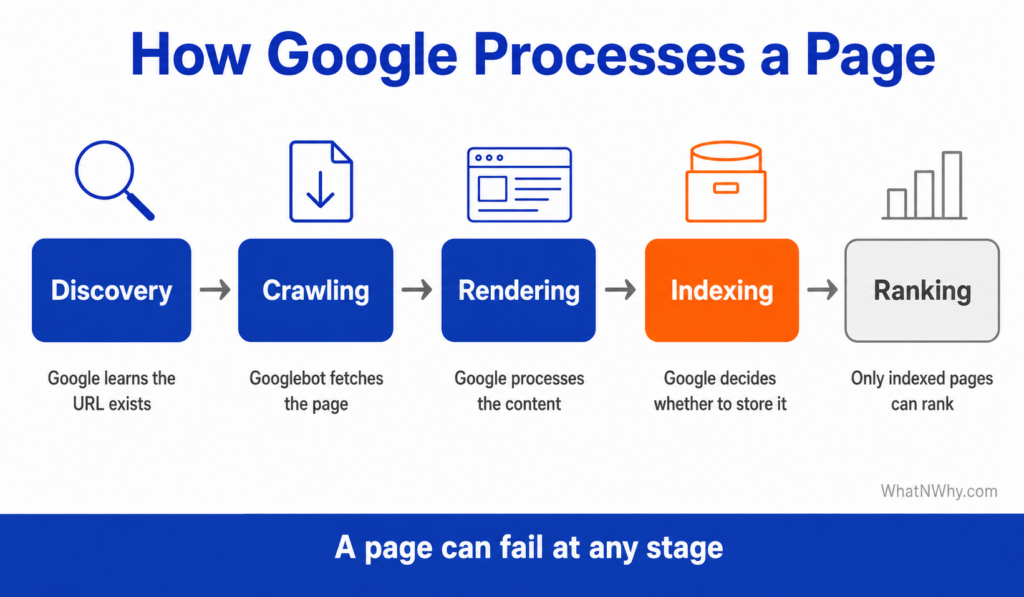
Discovery. Google learns that the URL exists. This happens through internal links, external links, or your sitemap.
Crawling. Googlebot fetches the page. It requests the HTML, plus the CSS, JavaScript, and images the page depends on.
Rendering. Google processes the page in a browser environment, so that content generated by JavaScript becomes visible to it.
Indexing. Google analyses what it found and decides whether to store the page in its index. This is a judgement, not an automatic step.
Ranking. Only pages in the index can rank. Ranking is a separate problem entirely.
That last distinction matters more than people expect. If your page is indexed but sitting on page six, you do not have an indexing problem. You have a ranking problem, and the fixes are different. We cover that separately in our guide on why a page can be indexed but not ranking.
Start With URL Inspection in Google Search Console
Before you change anything, find out what Google actually thinks.
Open Google Search Console, paste the full URL into the inspection bar at the top, and read what comes back. Then use Test Live URL to see the current state rather than the state from Google’s last visit.
You will get one of several results. Each one points somewhere different.
URL is on Google. The page is indexed. If it is not showing in search results, your problem is ranking or a very specific query mismatch, not indexing.
URL is not on Google. The page is not indexed. The reason given underneath is what you work from.
Discovered, currently not indexed. Google knows the URL exists but has not fetched it. This is a crawl priority signal, not a content verdict.
Crawled, currently not indexed. Google fetched the page and chose not to index it. This is usually about value, duplication, or intent match.
Excluded by noindex tag. Something on the page or in the HTTP headers is telling Google not to index it.
Blocked by robots.txt. Google cannot crawl the page at all.
Alternate page with proper canonical tag. Google has indexed a different URL that you nominated as the canonical.
Duplicate, Google chose different canonical than user. You nominated one URL. Google picked another.
Page with redirect. The URL redirects, so the destination is what gets indexed.
Soft 404. The page returns a success code but looks like an error page or an empty page to Google.
Do not skip this step and start editing content. A page excluded by noindex will not be fixed by rewriting it.
The Order You Should Check Things In
Most indexing troubleshooting fails because people start in the wrong place. They rewrite content when the page has a stray noindex tag. They rebuild sitemaps when the page returns a 404.
Work in this order, because each stage depends on the one before it.
• Confirm the exact URL, including protocol, subdomain, and trailing slash
• Check the HTTP status code
• Check for a noindex tag or header
• Check whether robots.txt allows crawling
• Check the canonical URL
• Check whether the page redirects
• Check whether the page is in your sitemap
• Check whether internal links point to the page
• Check content quality and originality
• Check for duplicate or near-duplicate pages
• Check whether important content renders
• Inspect the URL again after fixing
• Request indexing, but only once the real issue is resolved
The logic is simple. There is no point assessing content quality on a page Google cannot reach. And there is no point requesting indexing on a page that still says noindex.
Technical Access: Can Google Reach the Page at All?
The first three checks are all about access. If any of them fails, nothing else matters.
Is the page returning a 200 status?
An indexable page normally needs to return a successful response.
Check for these instead:
• Redirects (301 or 302). The destination URL gets indexed, not this one.
• 404 or 410. The page does not exist as far as Google is concerned.
• Soft 404. The server says the page is fine, but the page itself looks empty or like an error message. Google treats it as missing.
• 5xx server errors. If Google hits these repeatedly, it will crawl less often.
You can see the response code in URL Inspection, or in any browser’s developer tools under the Network tab.
Soft 404s catch people out. A category page with no products, or a search results page with no results, can look successful to your server and empty to Google.
Does the page have a noindex tag?
A noindex directive is an instruction, and Google follows it.
Check these places:
• A meta robots tag in the page HTML containing noindex
• An X-Robots-Tag: noindex in the HTTP response headers
• Your SEO plugin settings, which can apply noindex to whole post types or taxonomies
• A staging environment setting that was never removed at launch
• Password protection or a coming soon plugin
Accidental noindex is one of the most common causes of a page never appearing. It is also the easiest to miss, because the page looks completely normal to you.
Is robots.txt blocking Google?
This one is widely misunderstood, so it is worth being precise.
Robots.txt controls crawling. It does not control indexing. Those are different things.
If you block a URL in robots.txt, Google will usually not fetch it. But if other pages link to that URL, Google can still index it based on those links alone, without ever seeing the content.
There is a worse version of this. If a page has a noindex tag and is blocked in robots.txt, Google cannot read the noindex tag, because it cannot crawl the page. The directive you wanted never gets seen.
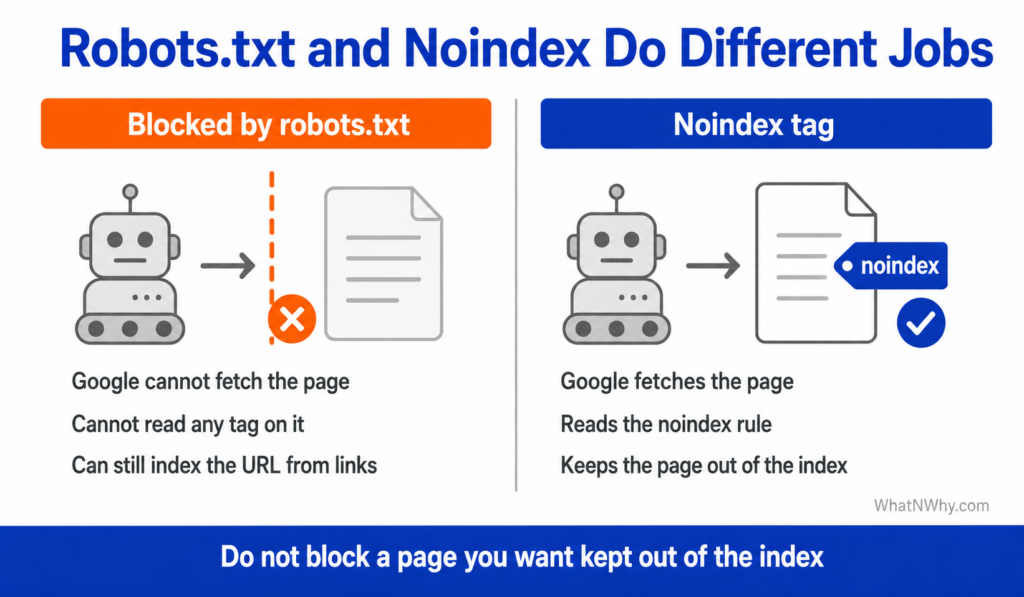
If you want a page kept out of the index, allow Google to crawl it and use noindex. Do not block it.
One more thing. Blocking your CSS and JavaScript files stops Google from rendering the page properly. Older advice recommended this. It is now actively harmful, and Google’s documentation says so directly.
Canonical Signals and Duplicate Pages
If access is fine, the next question is which URL Google thinks it should be indexing.
Is Google seeing the canonical you expect?
A canonical tag tells Google which version of a page is the main one. It is a strong signal. It is not a command.
Google can and does choose a different canonical. When it does, Search Console reports it as Duplicate, Google chose different canonical than user.
Common causes:
• The page has a canonical tag pointing to a different URL, sometimes left over from a template
• Both HTTP and HTTPS versions are accessible
• Both www and non-www versions are accessible
• Tracking parameters create multiple URLs serving the same content
• The page is very similar to another page on your site, and Google has picked that one
Check the canonical in URL Inspection. It shows both the canonical you declared and the canonical Google selected. If they differ, that is your problem.
Is the page too similar to something else?
Google does not want two near-identical pages in its index. When it finds them, it picks one.
This shows up most often in:
• Tag and category archive pages that list the same posts
• Filter and parameter URLs on ecommerce sites
• Location pages where only the town name changes
• Printer-friendly versions
• Product variants with separate URLs and identical descriptions
If two of your pages target the same query with the same angle, you are competing with yourself. The fix is usually to merge them into one stronger page and redirect the weaker URL, rather than trying to make Google index both.
Discovery: Can Google Find the Page?
A page nobody links to is a page Google struggles to find and struggles to value.
Is the page in your XML sitemap?
A sitemap helps Google discover URLs. That is its job. It does not force indexing, and it never has.
For a URL to belong in your sitemap, it should be indexable, canonical, return a 200 status, and be a page you actually want in search results.
Check the sitemap report in Search Console. It shows what you submitted and how much of it Google has indexed. A large gap between submitted and indexed usually points to a quality or duplication issue, not a sitemap issue.
Do internal links point to the page?
This is the section most people underestimate.
An orphan page is a page with no internal links pointing to it. Google may find it through the sitemap, but a URL that nothing on your site links to sends a clear signal. It looks unimportant, because nothing on the site treats it as important.
Internal links do several jobs at once:
• They give Google a crawl path to the page
• They pass context through the anchor text
• They signal that the page matters within your site
• They help readers find related content, which is the point of the exercise
Practical checks:
• Is the page reachable from your main navigation, or from a category or hub page
• Do related articles link to it naturally, inside the content rather than only in a related posts widget
• Does the anchor text describe the destination, rather than saying “click here”
• Are breadcrumbs in place where they make sense
We treat internal linking as a structural requirement rather than an optimisation. Every page on this site should be reachable through genuine contextual links from related content, not just through a sitemap entry. Our on-page SEO checklist covers how that fits alongside the other on-page elements.
Internal links help. They do not guarantee indexing, and no honest guide will tell you otherwise.
Quality: Is the Page Worth Indexing?
Here is the part that is uncomfortable but true. Google can crawl a page, understand it perfectly, and still decide not to index it.
Technical indexability gets you considered. It does not get you included.
Pages that commonly fail this stage:
• Thin pages that do not answer the question they raise
• Generic pages that repeat what already ranks without adding anything
• Near-duplicate pages that overlap heavily with your own existing content
• Pages built for a keyword rather than for a reader with a problem
• Mass-produced pages created from a template with minor variations
• Pages that miss the intent of the query they target
That last one is subtle and worth an example. Someone searching “Google Ads conversion tracking” usually wants to set it up or fix it. A page that spends 1,500 words defining what conversion tracking is will not satisfy them, even though it is accurate and well written. It answers a question nobody asked.
You cannot fix a quality problem by clicking Request Indexing repeatedly. Google has already looked. Asking it to look again at the same page produces the same conclusion.
The fix is to make the page genuinely better than what currently ranks, or to accept that it does not need to exist and merge it into something that does. Planning that properly at the topic stage saves the work later, which is part of what a content marketing strategy is for.
There is one more factor worth being honest about. New sites with few links often accumulate unindexed pages regardless of quality, because Google is being selective about where it spends crawl resources. That is not a reason to publish weaker content. It is a reason to expect a slower start. If your site is new, our SEO checklist for new websites covers the foundations that come first.
Rendering: Can Google See the Content?
This only applies to some sites, but when it applies it explains everything.
If your main content is generated by JavaScript after the page loads, Google has to render the page to see it. Rendering usually works. Sometimes it does not.
Check for:
• Content that only appears after a user interaction, such as clicking a tab or an accordion
• Lazy-loaded content that never loads without scrolling
• Blocked or failed CSS and JavaScript resources
• Fully client-side rendered pages where the initial HTML is nearly empty
Use Test Live URL in Search Console, then View Tested Page and read the HTML tab. Search for a distinctive sentence from your main content. If it is not there, Google is not seeing it.
For most WordPress sites this is not the issue. For JavaScript-heavy sites, it is often the whole issue.
What Discovered and Crawled but Not Indexed Actually Mean
These two statuses look similar and mean completely different things. Treating one like the other is a common mistake.
Discovered, currently not indexed
Google knows the URL exists. It has not fetched it yet.
This is a crawl priority signal. Google has queued the URL and decided other things come first. It happens most on large sites and on newer sites with limited authority.
What to check:
• Is the page linked from somewhere Google crawls regularly
• Is the site producing far more URLs than its crawl allocation covers
• Are there large numbers of low-value URLs competing for the same crawl budget
Rewriting the content will not change this status, because Google has not read the content yet.
Crawled, currently not indexed
Google fetched the page and chose not to index it.
This is a value judgement. Google saw the page and did not consider it worth storing.
What to check:
• Does the page duplicate something else, on your site or elsewhere
• Does it match the intent of the query it targets
• Does it add anything the currently ranking pages do not
• Does anything on your site link to it and treat it as important
One thing worth knowing. A page can move into this status after previously being indexed. If a page you know was indexed now shows this status, treat it as a signal that Google reassessed it, not that it is waiting in a queue.
Should you use Request Indexing?
Yes, but once, and only after you have fixed something.
Request Indexing is useful when you have made a real change and want Google to see it sooner than its normal schedule allows. It is a nudge.
It is pointless when nothing has changed. Google states that requesting indexing does not guarantee inclusion, and submitting the same unchanged URL repeatedly achieves nothing. It does not push you up a queue, and it does not override a quality assessment.
Google Indexing Problem Diagnostic Table
| Search Console status | Likely meaning | What to check | First action |
| Discovered, currently not indexed | Google knows the URL but has not crawled it | Internal links, crawl budget, site size | Add contextual internal links from pages Google crawls often |
| Crawled, currently not indexed | Google read the page and chose not to index it | Content value, duplication, intent match | Improve the page substantially, or merge it into a stronger one |
| Blocked by robots.txt | Google cannot crawl the URL | Your robots.txt rules | Remove the disallow rule if the page should be indexed |
| Excluded by noindex tag | A directive is telling Google not to index | Meta robots tag, HTTP headers, plugin settings | Remove the noindex, then inspect again |
| Duplicate without user-selected canonical | Multiple similar URLs, none nominated | Canonical tags across the variants | Add a self-referencing canonical to the version you want indexed |
| Duplicate, Google chose different canonical | Google picked a different URL than you did | Which URL Google selected, and why | Make the intended page clearly distinct, or accept Google’s choice |
| Alternate page with proper canonical tag | Working as intended | Nothing, if the canonical is correct | No action needed |
| Page with redirect | The URL redirects elsewhere | Whether the redirect is intentional | Index the destination URL instead |
| Soft 404 | Page returns success but looks empty or broken | Actual page content, thin or empty templates | Add real content, or return a proper 404 |
| Server error (5xx) | Google could not load the page reliably | Server logs, hosting stability, timeouts | Fix the server issue, then request a recrawl |
WordPress Checks When a Page Is Not Indexed
Most of these take under a minute, and they account for a surprising share of indexing problems on WordPress sites.
• Settings, Reading, Search engine visibility. If “Discourage search engines from indexing this site” is ticked, nothing will be indexed. This gets left on after a site build more often than anyone admits.
• SEO plugin settings. Check whether the post type, category, or individual page is set to noindex.
• Canonical settings. Confirm the plugin is generating a self-referencing canonical and that no manual override is in place.
• Sitemap status. Confirm the page appears in the sitemap your plugin generates.
• Page status. Confirm the page is published, not draft, pending, private, or scheduled.
• Password protection. A password-protected page cannot be indexed.
• Coming soon or maintenance mode. These plugins often apply a sitewide noindex.
• Caching. If you have made changes, purge the cache before testing. A crawler can be served an old version of the page for a considerable time after you have fixed something.
• Internal links. Confirm something on the site actually links to the page.
That caching point is worth taking seriously. It is entirely possible to fix an indexing problem, test it, see the old version, and conclude the fix did not work.
What to Do After You Fix the Problem
Work through this sequence rather than jumping straight to Request Indexing.
- Confirm the page loads correctly and returns a 200 status
- Confirm there is no noindex tag or header
- Confirm robots.txt allows crawling
- Confirm the canonical points where you expect
- Confirm the page is in your sitemap
- Add contextual internal links from relevant existing pages
- Improve the content if quality was the issue
- Purge any caching so the live version reflects your changes
- Inspect the URL again in Search Console using Test Live URL
- Request indexing once
- Wait, and monitor the Page Indexing report
Do not repeat step 10. One request is the whole benefit.
Google Indexing Checklist
Worth saving and running through whenever a page is not appearing.
• The page returns a 200 status code
• There is no noindex meta tag
• There is no X-Robots-Tag noindex header
• Robots.txt does not block the URL
• CSS and JavaScript are not blocked
• The canonical tag points to this page
• Google has selected the same canonical you did
• The page does not redirect
• The URL is in the XML sitemap
• At least one contextual internal link points to the page
• The page is not an orphan
• The content answers the question it raises
• The page is not a near duplicate of another page
• Important content appears in the rendered HTML
• Caching has been purged after any changes
• The URL has been inspected in Search Console
• Request Indexing was used once, after the fix
Common Mistakes People Make When a Page Is Not Indexed
Requesting indexing repeatedly. It does not speed anything up and it does not override Google’s assessment.
Blaming the sitemap. A sitemap aids discovery. It has never forced indexing, and resubmitting it will not change a quality decision.
Ignoring noindex. People rewrite content for weeks without checking the one tag that was stopping everything.
Ignoring canonicals. If Google picked a different canonical, the page you are working on was never the one being considered.
Creating more duplicates. Publishing a second version of a page that failed to index gives Google two pages to reject instead of one.
Chasing backlinks before fixing the page. Links to a page carrying a noindex tag achieve nothing.
Publishing thin pages at volume. More URLs on a site that is already struggling to get indexed makes the problem worse, not better.
Leaving pages orphaned. If nothing on your site links to a page, you are telling Google it does not matter.
Assuming crawlable means indexable. These are separate stages with separate outcomes.
Changing URLs unnecessarily. A new URL restarts discovery from zero and adds a redirect to maintain.
Frequently Asked Questions
Conclusion
Indexing problems feel random. They rarely are.
Work through it in order. First check whether Google can reach the page at all, because a status code, a noindex tag, or a robots.txt rule will stop everything else from mattering. Then check the canonical, because Google may be evaluating a different URL entirely. Then check discovery, because a page nothing links to is a page Google has little reason to prioritise. Only then look at content quality, which is where the genuinely difficult problems live.
Request Indexing belongs at the end, once, after you have changed something real.
The most useful next action is usually the least exciting one. Open Search Console, inspect the URL, and read what it tells you. Everything else follows from that.
Helpful Resources
Introduction to robots.txt
Source: Google Search Central. What robots.txt controls and what it does not.
States plainly that a disallowed URL can still be indexed if other sites link to it.
Block Search Indexing with noindex
Source: Google Search Central. How noindex works, including the warning that a
page blocked by robots.txt will never have its noindex rule seen.
What Is URL Canonicalization
Source: Google Search Central. Why Google may select a different canonical than
the one you specified, and what feeds that decision.
How to Specify a Canonical URL
Source: Google Search Central. The methods available, ranked by how strongly each
one influences Google’s choice. Confirms sitemap inclusion is a weak signal.
Fix Canonicalization Issues
Source: Google Search Central. What to do when Google clusters your pages as
duplicates, and how long re-evaluation takes.
Creating Helpful, Reliable, People First Content
Source: Google Search Central. The self-assessment framework behind most
“Crawled, currently not indexed” decisions.